
What rostering options are available for adding students?
There are five rostering options for adding classes and students to XtraMath. The best option for you and your school depends on how many classrooms you need to set up, whether your school uses Clever or ClassLink, and whether teachers use the free version of XtraMath, a teacher license, or a school-wide XtraMath License.
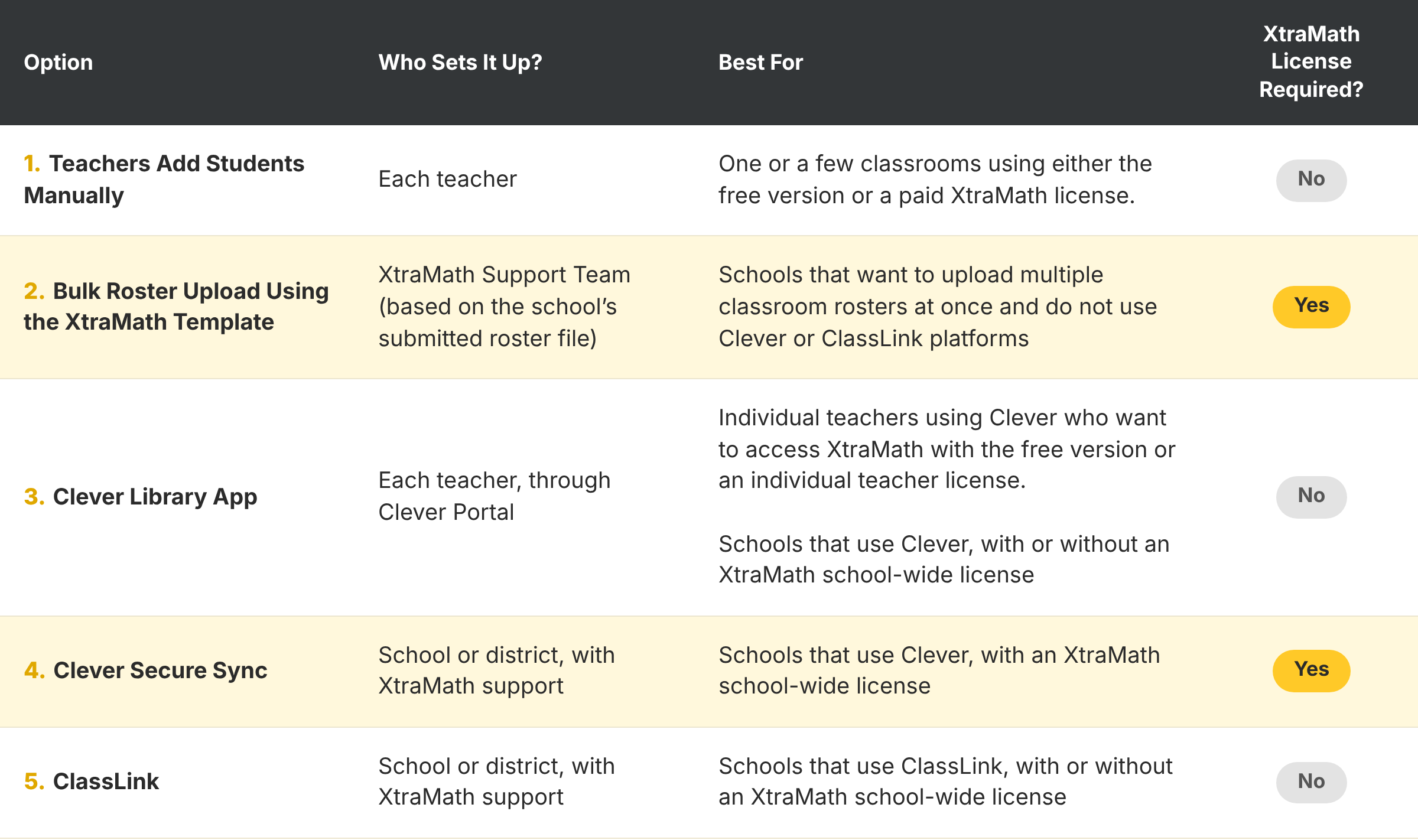
Option 1: Teachers add students manually (No license required)
This is the simplest choice for a single class or a few classrooms. Teachers follow these steps:
- Sign in to your teacher account. On your Class Report, click Add Students on the left.
- Type the student’s first name and choose their grade level. Keep the PIN XtraMath creates, or enter your own. Each PIN must be different within the class.
- Press Enter or click + to add the next student.
- Click Done when you’ve added everyone. You’ll return to your Class Report.

Option 2: Bulk Roster Upload Using the XtraMath Template (XtraMath License required)
Send your school’s roster to XtraMath, and the XtraMath Team will set up your classes for you. Teachers don’t need to add students one by one.
Click on the XtraMath Rostering Instructions (PDF) to see what data to send and how to format it. See the pricing page for license details.
Third-Party Rostering Integrations
XtraMath works with two rostering platforms, Clever and ClassLink:
✅ Clever: Library App (No license required) or Secure Sync (XtraMath License required)
✅ ClassLink: Secure Sync (No license required)
Clever
Option 3: Clever Library App (No license required)
Each teacher adds their own classes from the Clever Library. District admins can only recommend XtraMath so more teachers see it while browsing the Clever Library app.
For more info, click here: For teachers: adding apps from the Clever Library
📌 Important: District admins can’t install Clever Library apps for teachers. Each teacher must add XtraMath from the Clever Library app.
Option 4: Clever Secure Sync (XtraMath License required)
Your school or district syncs all classes to XtraMath automatically. Teachers and students will find XtraMath on the District Page tab in Clever.
Click here to see How can I use XtraMath with Clever? for teacher setup, and How can administrators manage the Clever integration? for school and district options.
Learn more:
- Clever Library vs. Clever Secure Sync: What’s the Difference?
- How does rostering with Clever Secure Sync work?
ClassLink
Option 5: ClassLink (No License required)
Your school or district manages the connection, and XtraMath syncs with your ClassLink roster every night. Make roster changes in ClassLink, not in XtraMath. Changes appear the next day.
Learn more: How can administrators manage the ClassLink integration?
Does XtraMath work with Google Classroom?
Not yet, though we hope to offer it in the future. Students can sign in with Google, but you can’t link a whole class to Google accounts at once.